
macOS Installation#
Note: the following has not been fully tested yet. Please @frankie on Slack if there are any issues with the installation or setup.
Setting Up#
Install UTM using brew:
brew install --cask utm
If you don’t have Homebrew yet, install from here
Download the UTM
.zipfrom the Google Drive
(make sure you have access to the Penn Aerial Robotics Main Drive)
Unzip the image in Finder. There should be a file with a
.utmextension
The image has the following pre-applied configurations:
12 GB RAM
If you have 8 GB RAM, consider using 6 GB RAM, but do know that the host (MacOS) might be unusable
64 GB pre-allocated disk space
Import the image using UTM –> File –> Open, and select the unzipped UTM image
Double-click the image or click on the play button to start the VM
First boot is expected to take awhile
Log in to the system
Make sure to edit the network service to prevent long boot times:
Edit
systemd-networkd-wait-online.serviceusing the following command:sudo systemctl edit systemd-networkd-wait-online.serviceInsert the following content before
### Edits below this comment will be discarded:
[Service]
ExecStart= # this line is left intentionally blank to clear Ubuntu's defaults
ExecStart=/usr/lib/systemd/systemd-networkd-wait-online --any --timeout=5
First Run#
Note
Please run git pull origin main and git submodule update --recursive to make sure monorepo is up-to-date prior to the first run.
Install QGroundControl on the MacOS host:
brew install --cask qgroundcontrolOpen qgroundcontrol using
open -a QGroundControlOpen a Terminal in the VM.
cdinto themonorepoand intomonorepo/ros_wsRun
colcon build, followed bysource install/setup.bashandros2 launch uav uav_sitl.launch.py
Verify that the UAV is able to take off and land.
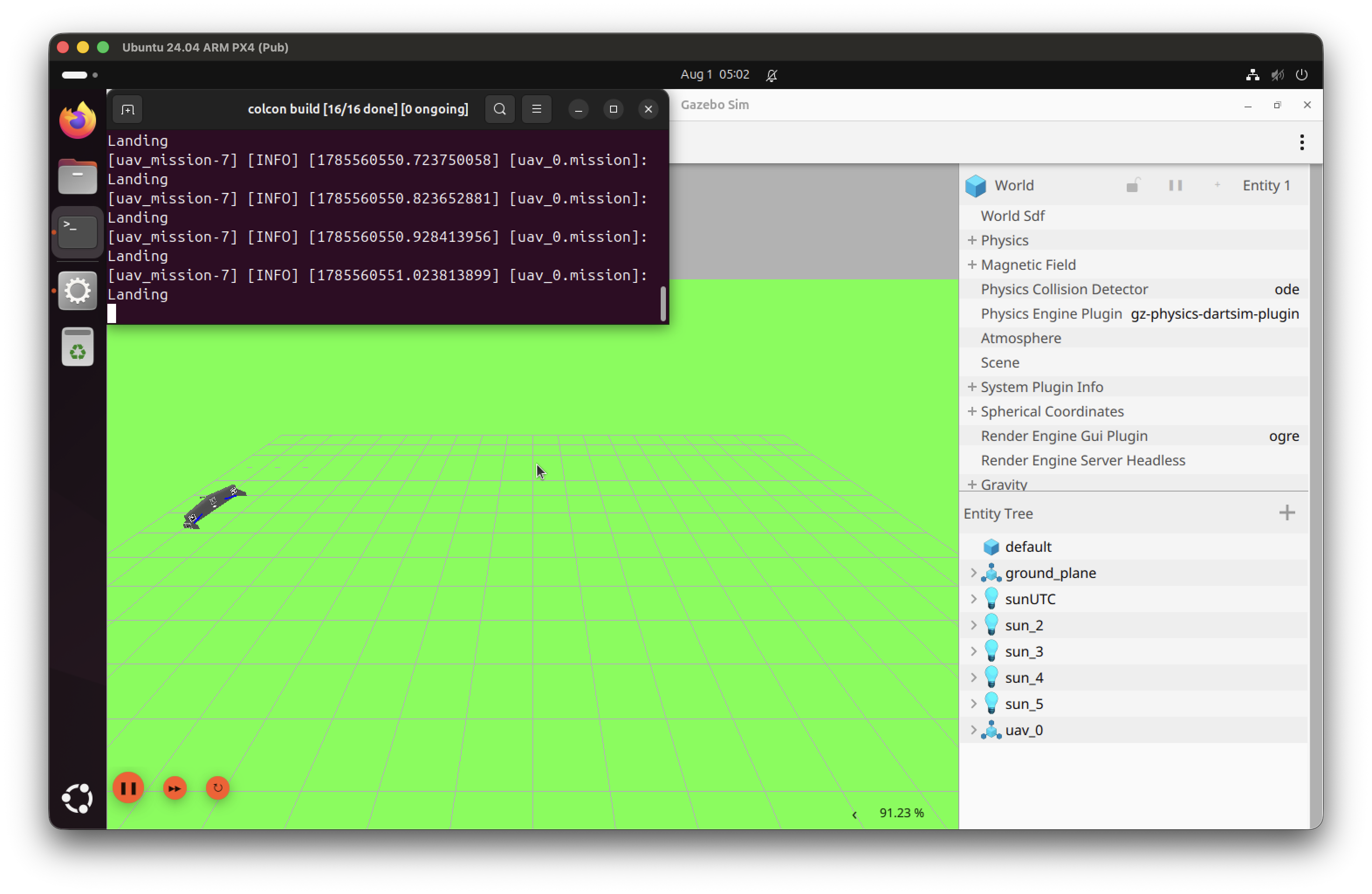
The VM should be ready!
Next Steps#
Please please change the password using
passwdand following the instructionsSet up GitHub authentication to push to the
monorepo(recommended: SSH authentication)Look at the Ubuntu Installation for further instructions
Note
The UTM image contains a frozen snapshot of the dependencies and codebase at the time it was created and uploaded to the drive. It is usually updated infrequently due to the hassle of uploading and compressing the large file to our drive.
Please run git pull origin main and git submodule update --recursive to make sure monorepo is up-to-date. Then follow the Ubuntu Installation starting from PX4 Installation to make sure no dependencies are missing.
Warning
If you’re getting slow boot times after setting up UTM and past the first boot, make sure to follow step 6 in Setting Up